
The complete DevHub guide.
Every screen, every button — what it is, where it lives, and how to use it, with a screenshot for each. If you have never opened DevHub before, start at the top and read straight down.
What is DevHub? It is a desktop app — think “GitHub Desktop for Creatio.” It puts a real
interface over three command-line tools you would otherwise type by hand: clio (Creatio), git,
and gh (GitHub). You manage environments, version-control packages, run SQL, compare and move data, and
deploy — without living in a terminal. DevHub stores no passwords; clio owns those.
Getting started
Install the app, point it at your tools, and register your first environment. This is a one-time setup.
1Install DevHub
Download the signed installer from the home page.
On Windows, run the .exe (or .msi). On macOS, open the
universal .dmg; the first launch needs right-click → Open until the build is notarized.
Updates are signed and arrive automatically — see Safety & updates.
2Install the command-line tools DevHub drives
DevHub does not replace clio, git, and gh — it drives them. It searches your
PATH and the usual install locations automatically. If any tool is missing or lives somewhere unusual, the
Settings screen shows you exactly what it found and lets you install
or pin a path. clio itself can be installed, updated, or repaired from inside DevHub.
3Register your first environment
Open the Environments screen, click Add environment, and enter your Creatio URL and credentials. Then Install gate — the cliogate helper that unlocks SQL, lookup capture, and object inspection. You are ready to work.
The green dot, bottom-left of every screen, means “Local desktop.” DevHub runs entirely on your machine and talks to your environments directly — nothing is proxied through a server.
The window, in one tour
Every screen shares the same frame. Learn it once and you can find anything.
- Left sidebar — the sidebar screens. It collapses to icons with the toggle at the top; hover a collapsed icon for its label. A red badge on Errors counts unread failures.
- Header — shows where you are (“Screen / DevHub”) and a Help & updates shortcut to Settings.
- Running-job toaster, bottom-right — whenever DevHub is doing something (a capture, a deploy), a live indicator shows the phase and an Open Jobs link. It never blocks you.
- Banners — a slim bar appears under the header only when it matters:
clioneeds attention, or a new DevHub release is ready.
Errors badge shows unread failures.Dashboard
The screen DevHub opens on: what your workbench looks like right now, at a glance.
Four cards count your environments (and which is the default), your workspaces (and how many have local changes), active jobs, and anything that needs attention — failed jobs plus workspaces with uncommitted work. Below them, Recent activity lists the last few jobs and updates itself live as they run, so you can watch a deploy without leaving the page. A Workspace readiness meter scores six checks — environments registered, a default chosen, workspaces created and present on disk, nothing dirty, nothing failed — and the quick actions jump straight to whichever screen fills the gap.
Nothing here changes an environment; it is a read-only summary you can safely leave open.
Environments
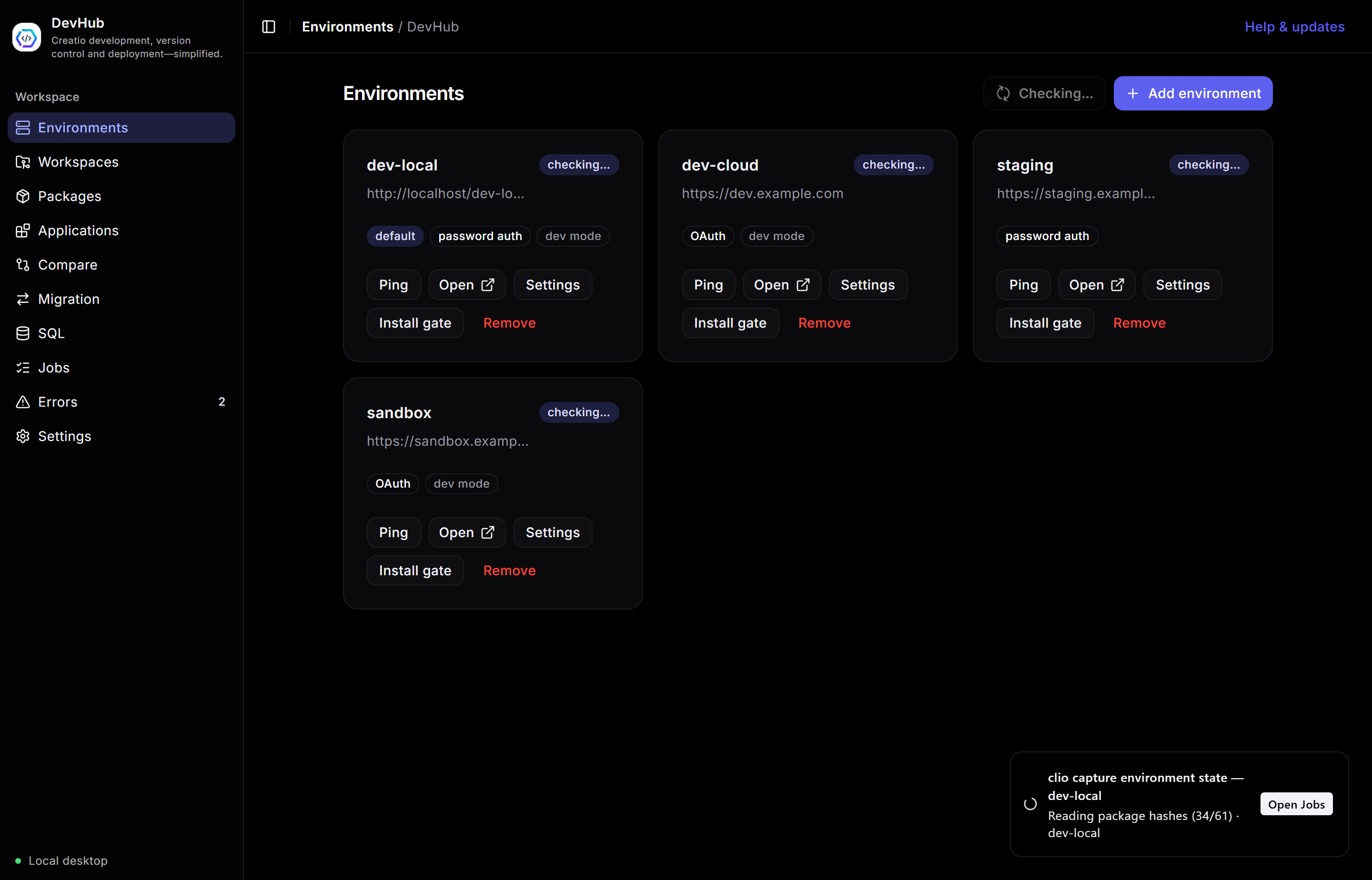
Every Creatio instance you work with — local, dev, staging, cloud — as a card you can act on.
Each card carries the environment’s URL, its auth kind (OAuth or password), and tags for default and dev mode. The buttons on every card:
- Ping — check the instance is reachable and you are authenticated.
- Open — launch the Creatio app in your browser.
- Settings — change the URL or credentials.
- Install gate — install/update cliogate, required for SQL, lookup capture, and object inspection.
- Remove — unregister the environment from clio.
Use Add environment (top-right) to register a new one. The card marked default is the one DevHub pre-selects everywhere else — you set it here or in Settings.
Apply changes finishes the job after a deploy. Installing a package is only half of getting code live: Creatio still has to compile the configuration, drop its cached schemas and restart. This runs all three as a single tracked job, in that order, so a failed compile stops the run before anything is torn down. Each step is optional — leave Restart unticked for a compile-only pass.
A restart signs everyone out of that environment for a moment, and the first page load afterwards is slow while Creatio warms up. Fine on your own dev site; think twice on a shared one.
The status badge on each environment card now comes from Creatio's own health endpoint, so it answers in about a tenth of a second — and it reports more than up or down: hover it to see whether Creatio reached its database and loaded its configuration assembly. An environment that is running but broken no longer reads as simply online.
Workspaces & Git
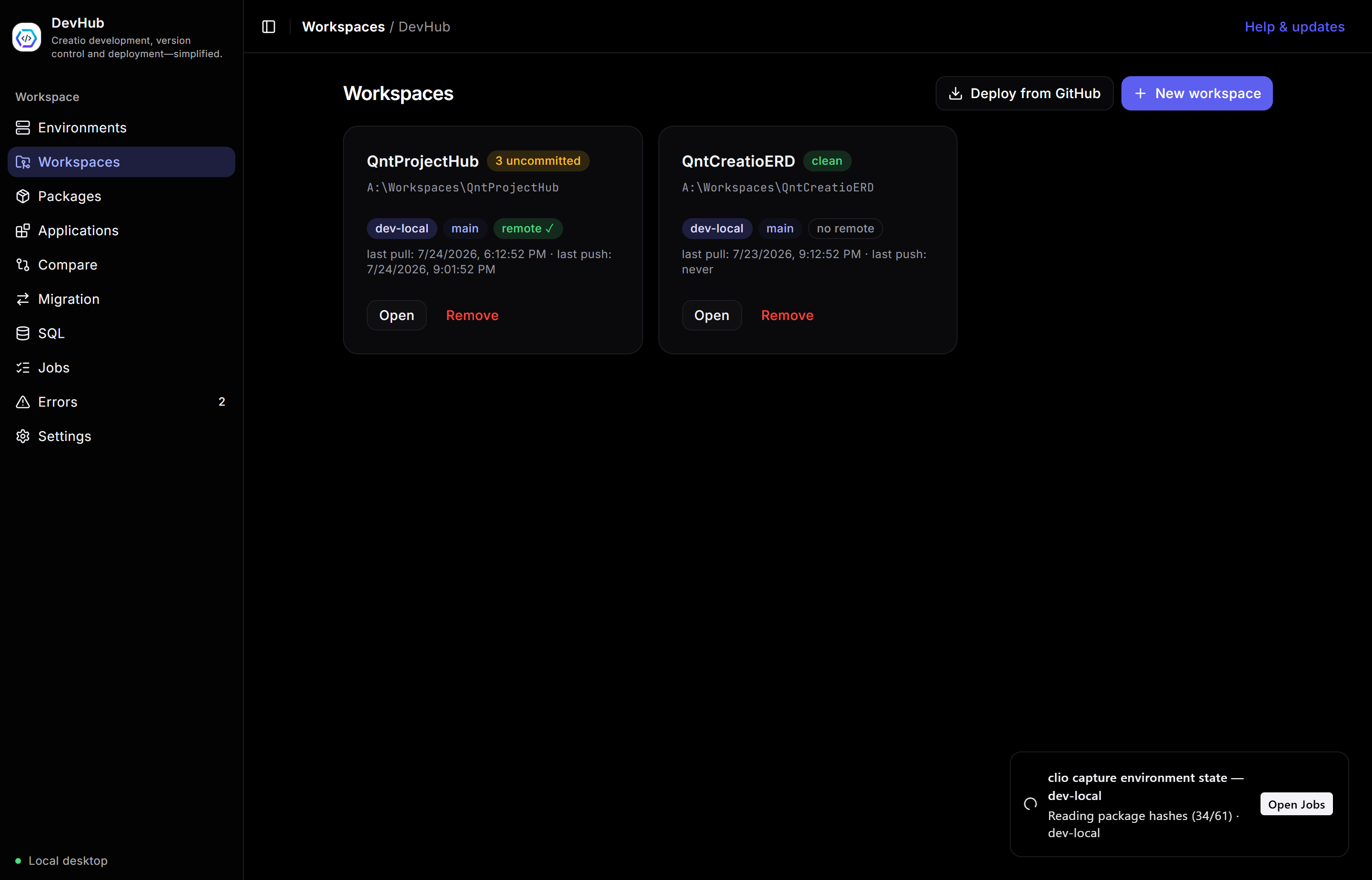
A workspace is a local, Git-tracked folder holding Creatio package source. Pull from Creatio, commit, push to Creatio, and sync with GitHub.
The list shows each workspace with its environment, branch, remote status, and how many files are uncommitted. Two buttons up top: New workspace (create one — empty, or seeded from packages) and Deploy from GitHub (clone a repo and push it straight into an environment). Click Open on a card to enter its detail view.
Inside a workspace
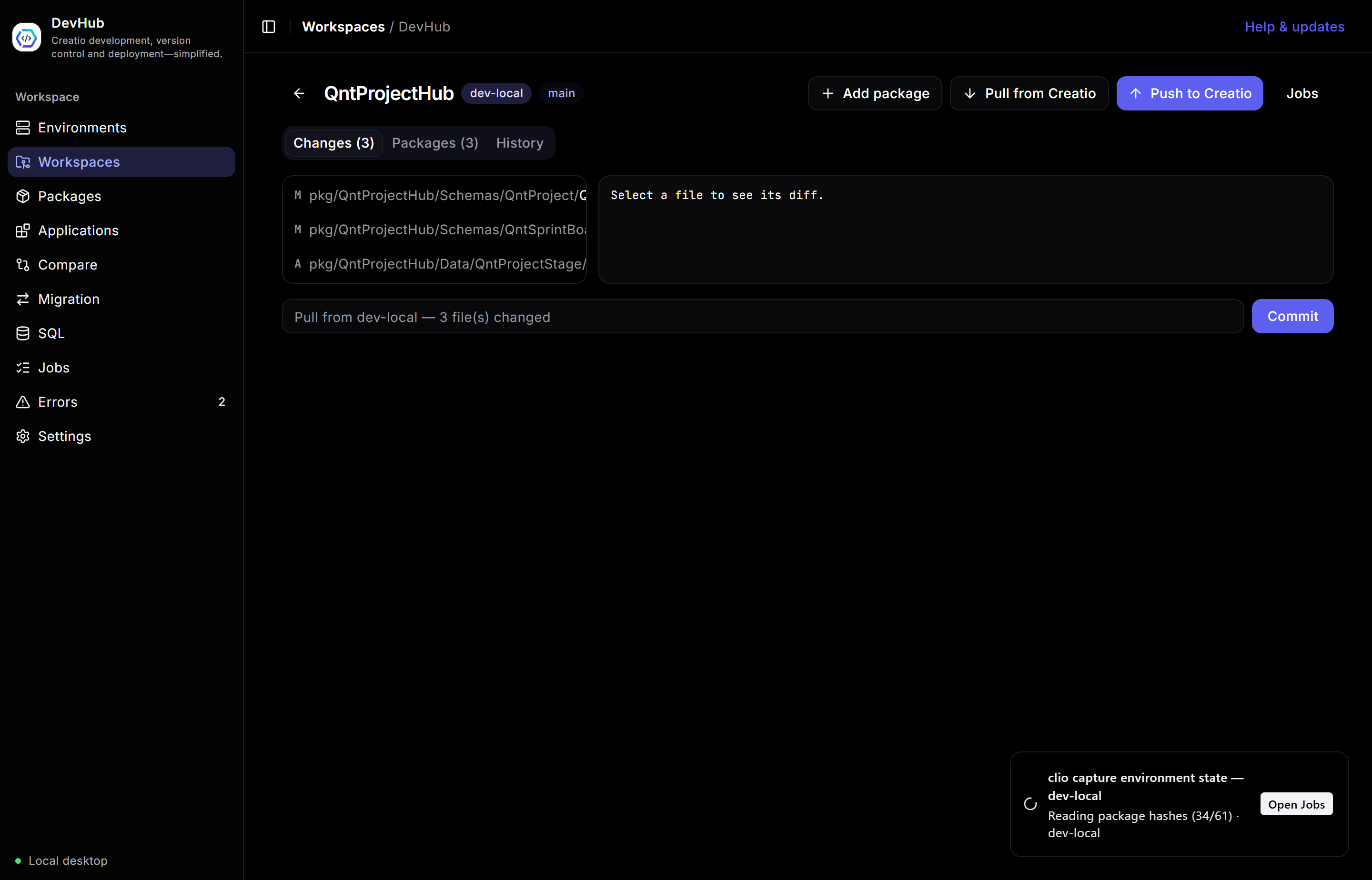
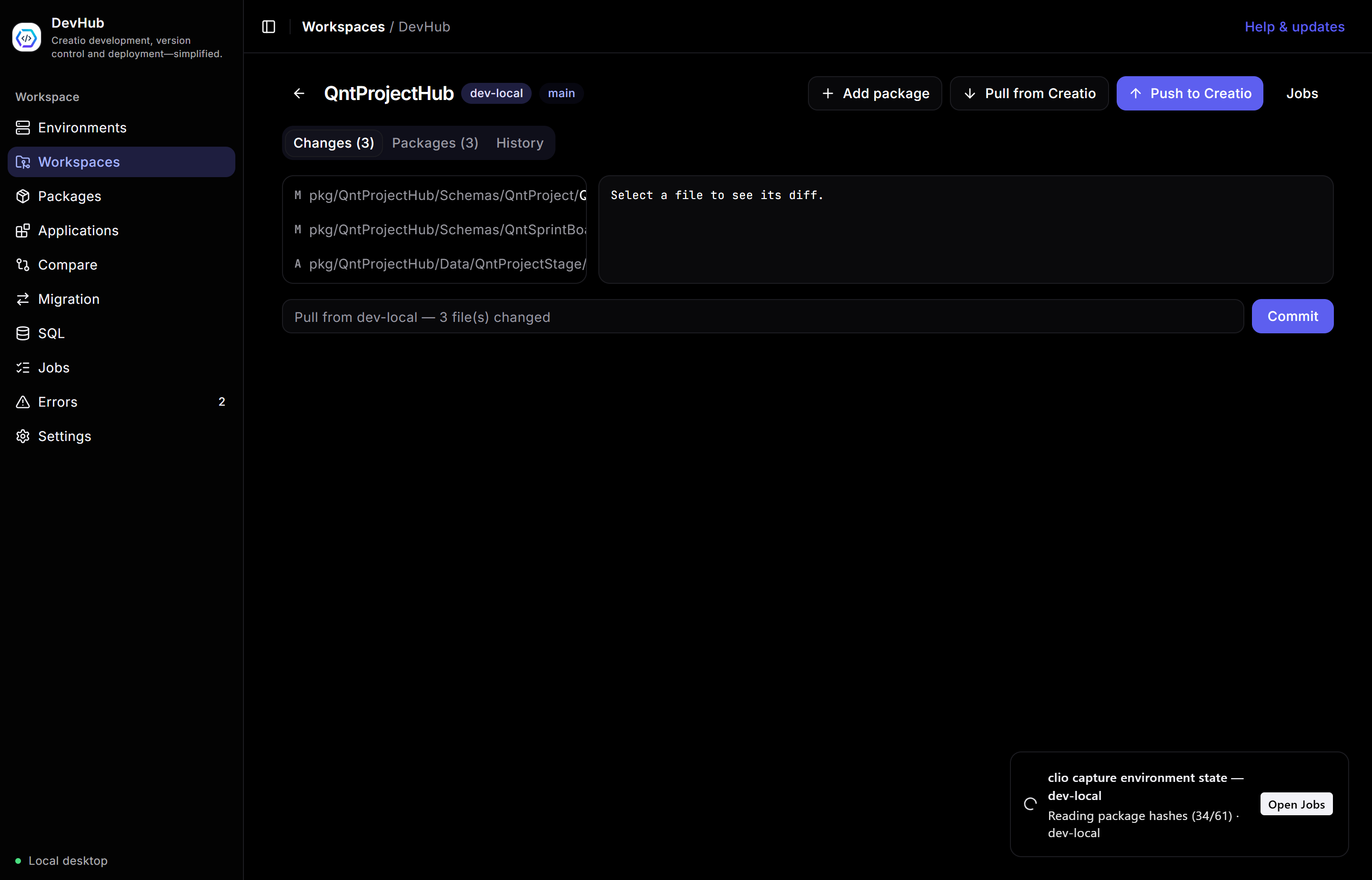
The detail view is where day-to-day version control happens. Along the top: Add package, Pull from Creatio (fetch the latest package source), and Push to Creatio (pack and install back). Three tabs organise the rest:
- Changes — every modified/added file with its status (
M,A). Click one to see its diff on the right. Type a message and Commit. - Packages — which packages this workspace version-controls.
- History — the commit log, plus GitHub wiring: pick or change the remote repository, and push your branch.
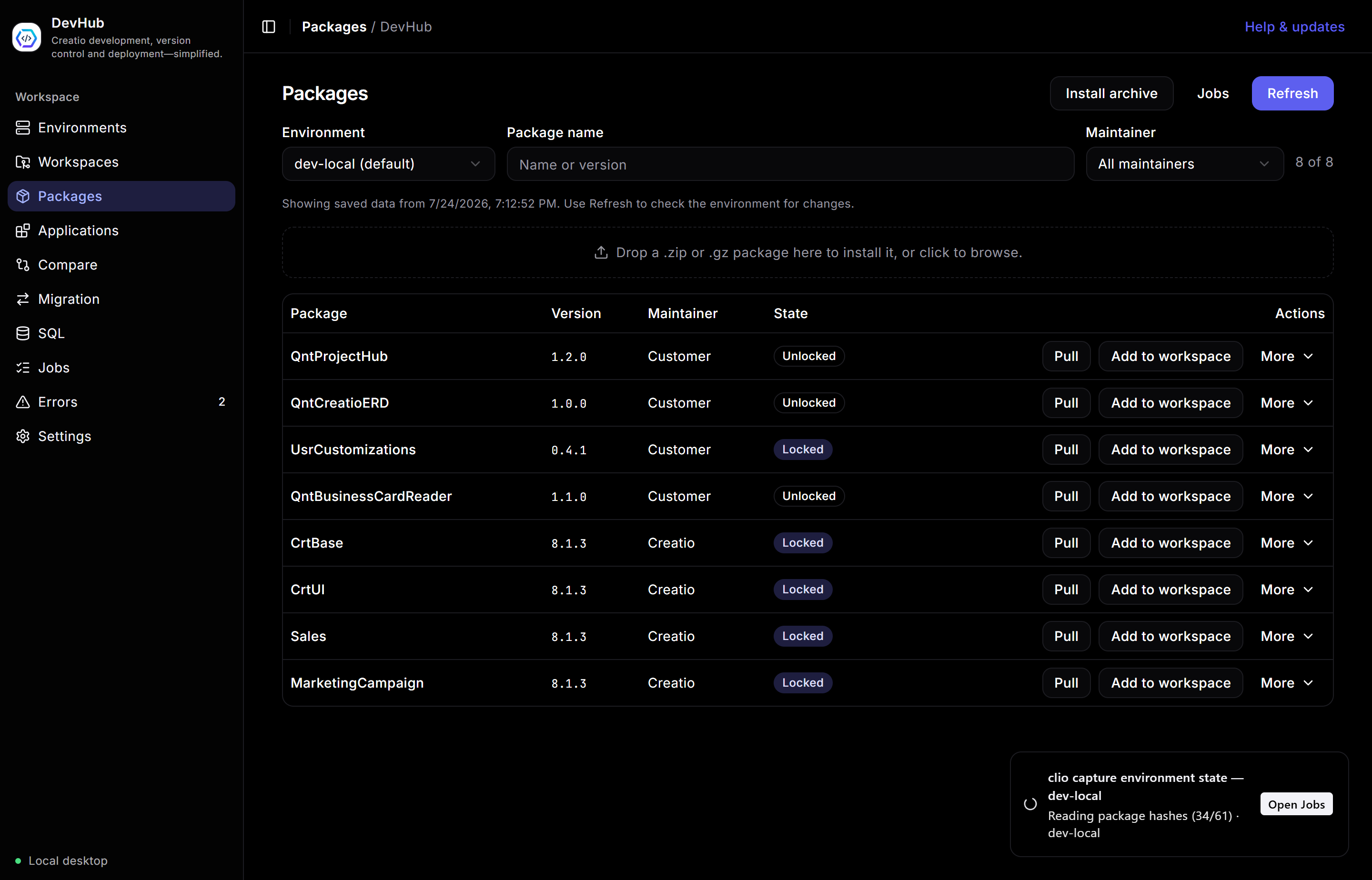
Packages
Browse every package in an environment, act on it, and move it between environments.
Pick an Environment and, optionally, filter by name or maintainer. The table lists each package’s version, maintainer, and lock state. Per-row actions:
- Pull — download the package source.
- Add to workspace — bring it under version control in a workspace.
- More — lock / unlock, activate / deactivate, hotfix, bump version, delete, and deploy to another environment.
The Install archive button (or the drop zone) installs a .zip/.gz package.
Data comes from a fast local cache; Refresh re-reads the environment.
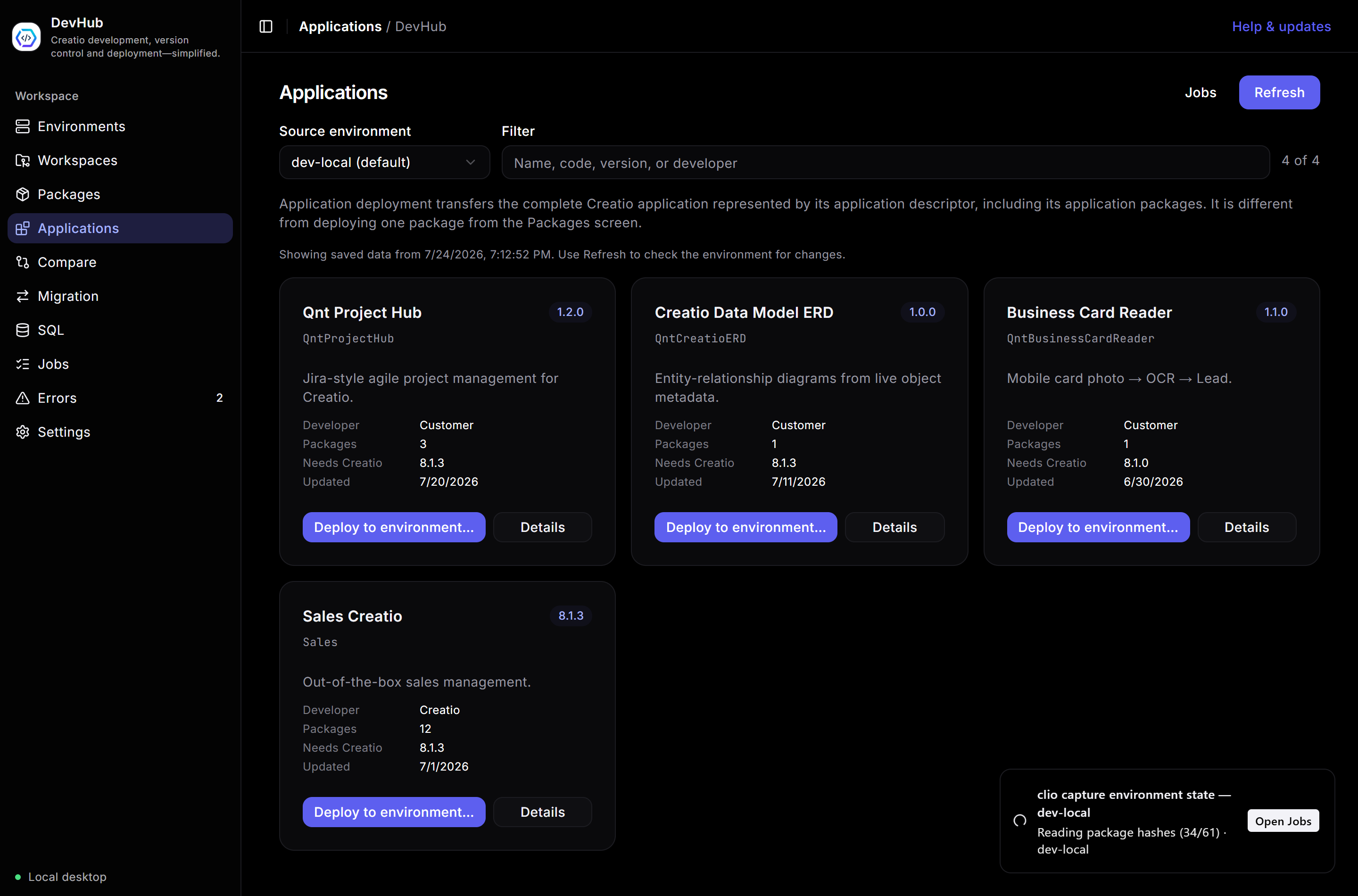
Applications
Creatio applications — the descriptor-level unit that bundles several packages — as rich tiles you can drill into and deploy.
Each tile shows the app’s code, version, description, developer, package count, required platform version, and last update. Deploy to environment… transfers the whole application (all its packages) to another registered environment — different from deploying a single package on the Packages screen.
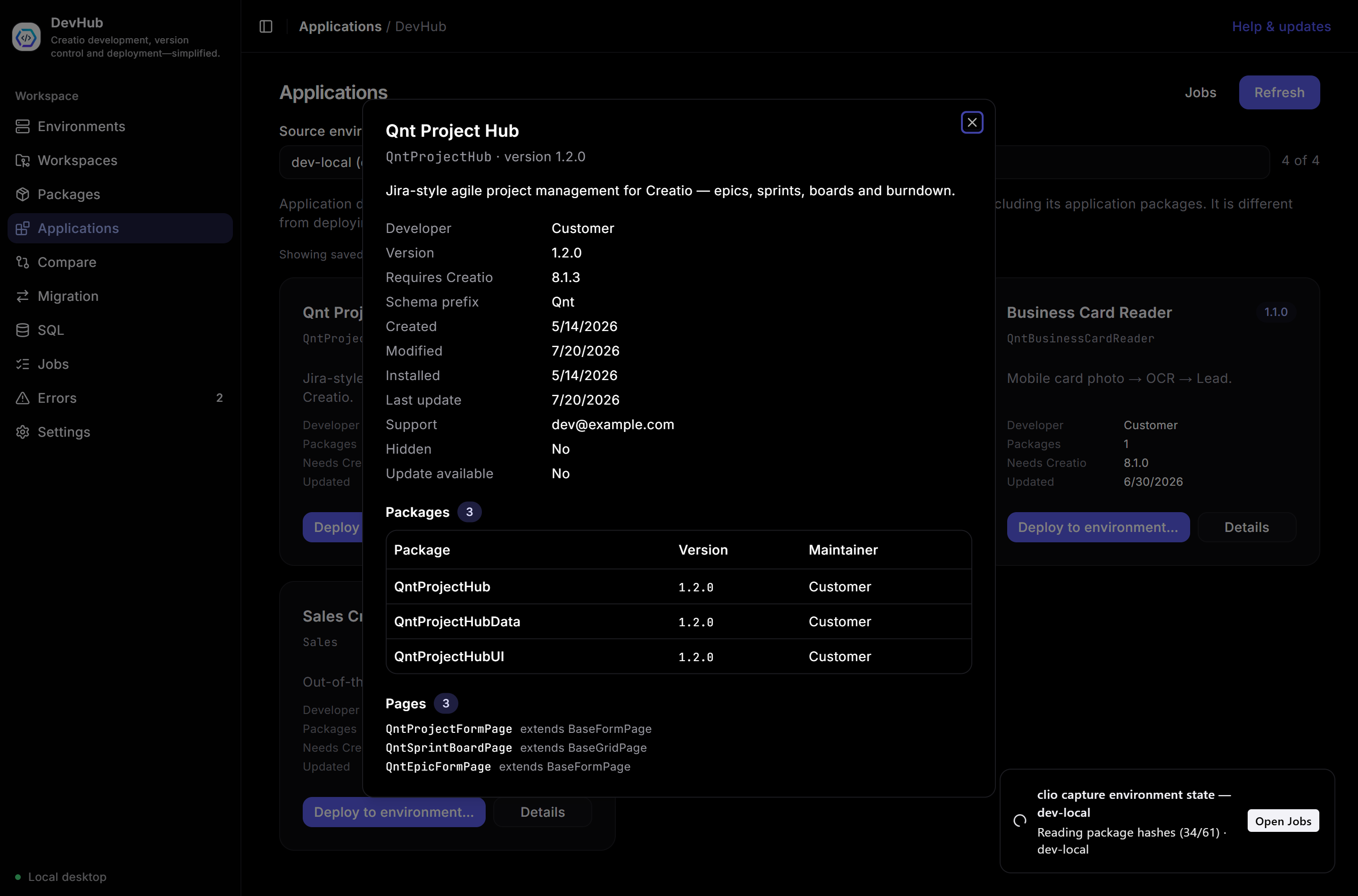
Details drill-down
Details opens a dialog with everything clio’s list omits: created/modified/installed
dates, support link, schema prefix, hidden/update flags, the full package list, and the app’s
pages with the base schema each extends.
Compare environments
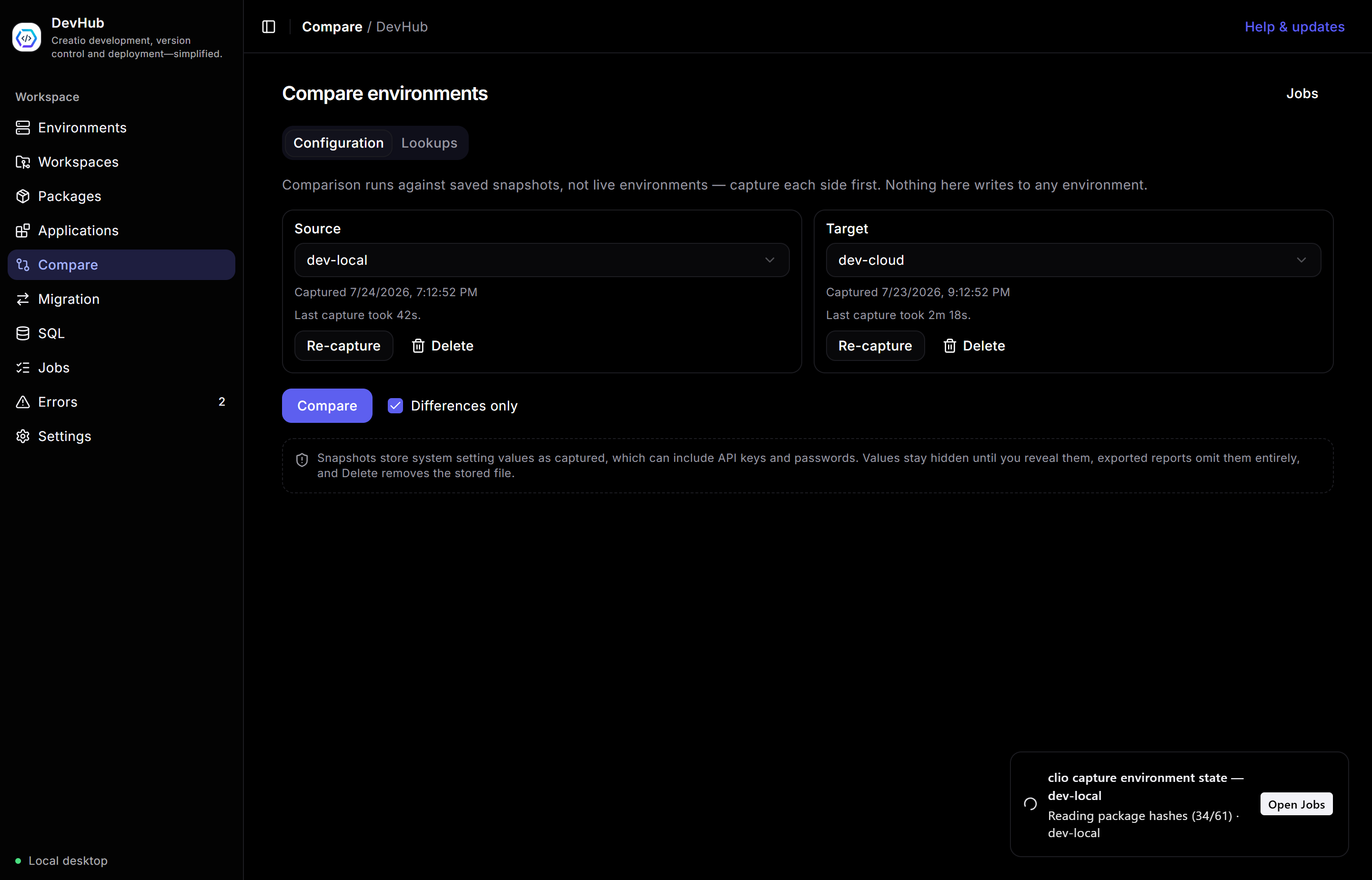
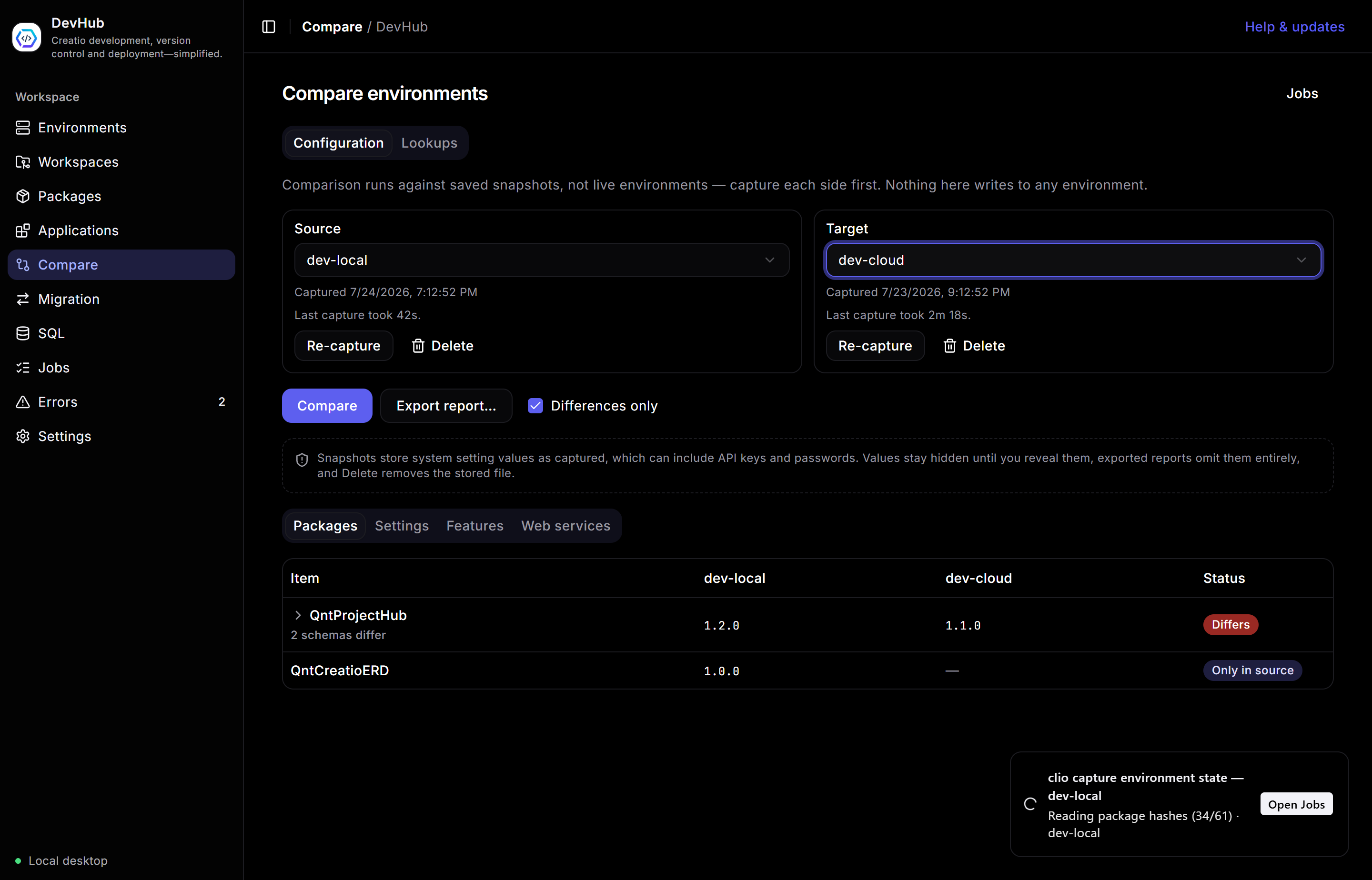
See exactly how two environments differ — packages, settings, features, web services, and reference data.
Comparison runs against saved snapshots, not live instances, so it is fast and read-only — nothing here writes to any environment. Two tabs: Configuration and Lookups.
1Capture, then compare
Choose a Source and Target. Each side shows when it was last captured and how long that took; use Re-capture to refresh. Then press Compare.
2Read the diff
Results group by category — Packages, Settings, Features, Web services. Each row shows the value on each side and a status pill: Differs, Only in source, or Only in target. Package rows expand to the schema level. Tick Differences only to hide matches, and Export report… to save the comparison.
Setting values can include secrets. Snapshots store them as captured, so values stay hidden until you reveal them, exported reports omit them entirely, and Delete removes the stored snapshot file.
Data Model
Map an environment's structure two ways — an entity-relationship diagram, and a package-dependency browser. Both read straight from the selected environment; nothing is installed on Creatio.
Pick an Environment at the top, then work in either tab. Everything here is read-only.
1ERD Diagram
Search for objects — Contact, Lead, your custom objects — and add as many as you like. Press Render to draw an entity-relationship diagram built from each object's columns and the real foreign keys between the ones you selected. Scroll to zoom, drag to pan, and use Fit or Reset to reframe. Export the diagram as SVG or PNG, or copy the underlying Mermaid source to reuse elsewhere.
2Package Dependencies
Choose a schema type (entity, client module, source code, process, page, and more) and press Load. The table lists every schema of that type with how many packages define it and which package holds the latest version. Sort or filter by name, toggle Multi-package to show only schemas defined in two or more packages, and open the Catalog to jump between types. Click a row to see all of its packages in the side pane, newest first — and for an entity, Open in ERD sends it straight to the diagram tab.
Relationships come from the database's own foreign-key constraints and columns come from information_schema, so the diagram reflects the environment exactly as deployed — no metadata service required.
Migration
Move data — not just packages — between environments. Two modes: reference-data lookups, and individual object records.
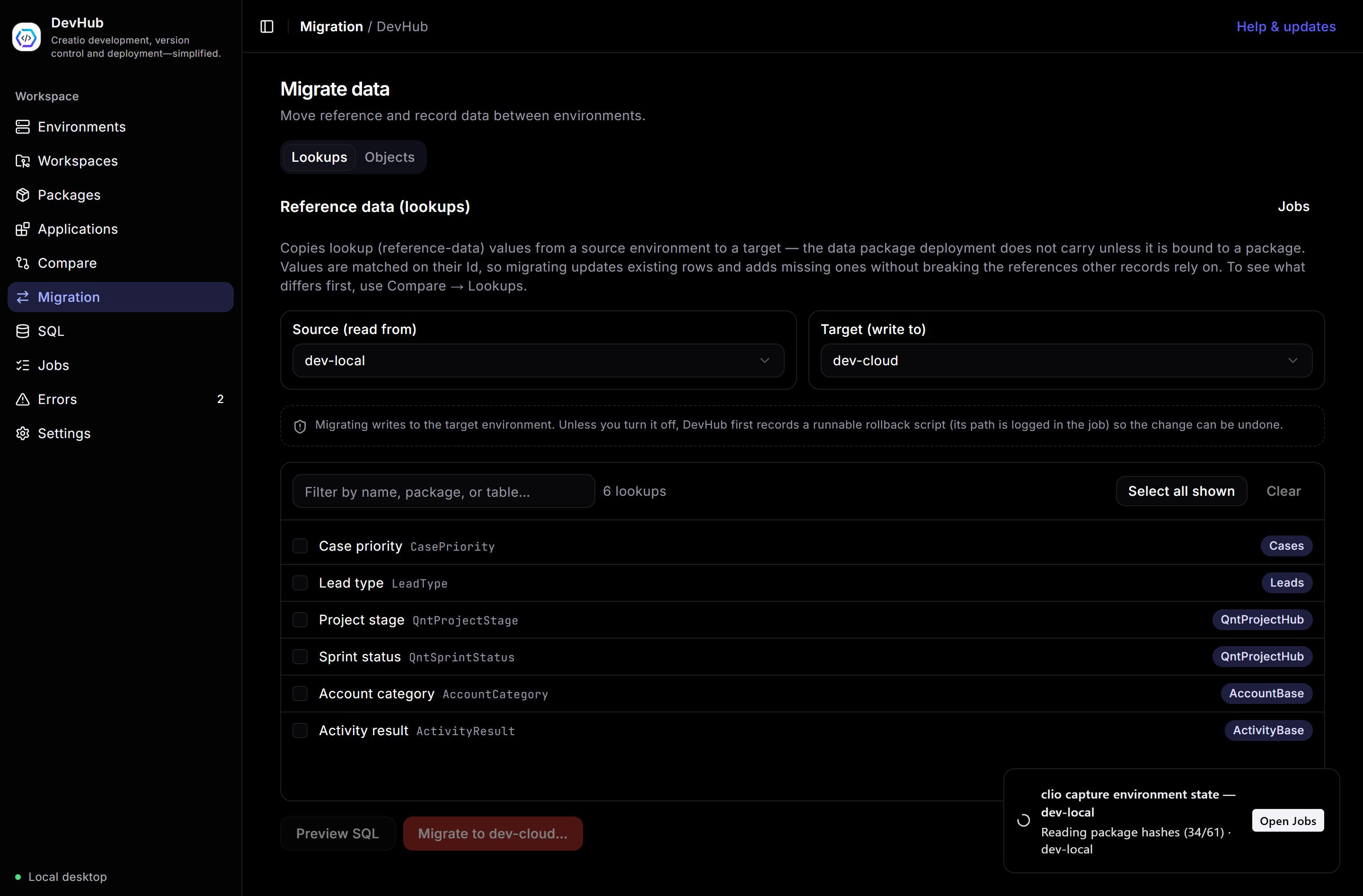
Lookups
Copies lookup (reference-data) values from a source environment to a target. Rows are matched on their Id,
so migrating updates existing rows and adds missing ones without breaking references other records rely
on. Pick source and target, tick the lookups to move (or Select all shown), then
Preview SQL to inspect the exact upsert, or Migrate to apply it. To see what differs
first, use Compare → Lookups.
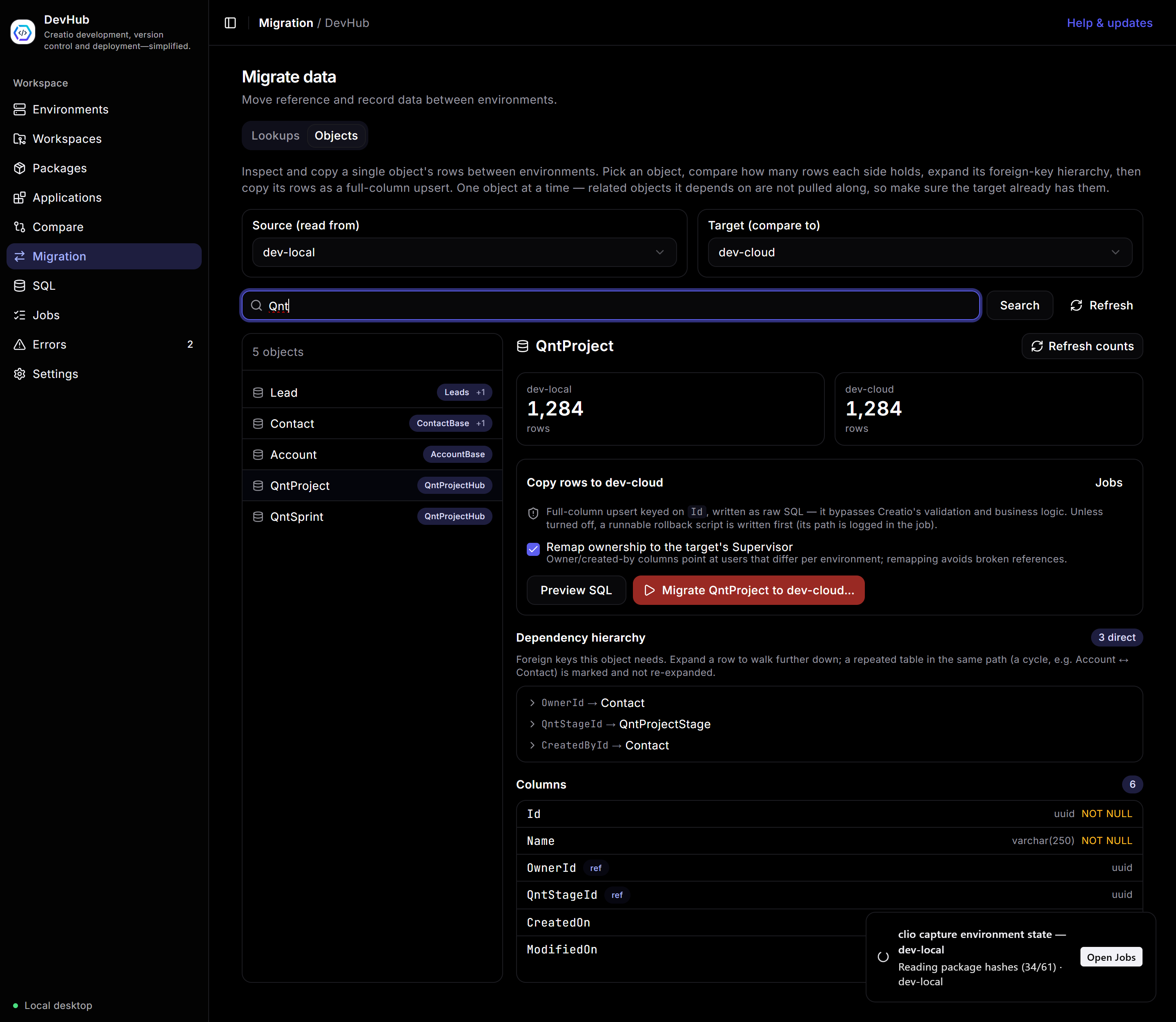
Objects
Inspect and copy a single object’s rows. Search for an object (Lead, Contact, QntProject…), and DevHub shows its
row counts on both sides, its columns with types, and its
foreign-key dependency hierarchy — expand a row to walk further down; cycles are marked. Copy runs as a
full-column upsert keyed on Id. Remap ownership to the target’s Supervisor rewrites
owner/created-by columns so references don’t break across environments.
Migrating writes to the target. Unless you turn it off, DevHub first records a runnable rollback script (its path is logged in the job) so the change can be undone. One object at a time — related objects it depends on are not pulled along, so make sure the target already has them.
Features
Creatio's feature toggles: what is switched on, switch it, and compare two environments.
Pick an environment and DevHub reads its feature state as it stands right now — every feature, its default, and how many groups override it in each direction. The switch on the right turns one on or off. Filter by code or name to find one among the hundreds a Creatio instance carries.
Set Compare with to a second environment and the screen becomes a difference list: each feature side by side, with Only differences on by default. This is the fastest answer to the question that usually prompts the search — why does this work on dev and not on pre-prod? — including features that exist on one environment and not the other.
Switching a feature applies it to the account clio signs in as on that environment — the same scope as
clio set-feature. It is not a system-wide default, and a group override can still win for other users.
Reading the list needs cliogate.
Schemas
Server code as a project: browse packages, open several schemas at once, edit and save them.
Creatio keeps client-module, source-code and SQL-script schemas in its own database, normally reachable only through the designers. This screen makes them a workspace. The left pane is a package explorer — packages, then schema kinds, then schemas — and the filter box searches both. Because an environment can hold nine thousand schemas, nothing expands until you ask, and Ctrl+P jumps straight to any schema by name without touching the tree at all.
Schemas open as tabs. Several can stay open, each keeping its own edits, its own dirty marker and its own undo history, so you can move between files the way you would in an editor. Closing a tab with unsaved work asks first.
The editor
The source opens in a full code editor with syntax colouring chosen by schema kind — JavaScript for client modules, C# for source code, SQL for scripts — and the shortcuts you already use:
- Ctrl+S save · Ctrl+F find · Ctrl+H replace · Ctrl+Z undo · multi-cursor
- Ctrl+Space for Creatio-aware suggestions — Freedom UI request names, handler and lookup-filter skeletons, ESQ, Select, web-service and event-listener snippets for C#, and real table names read live from your environment while writing SQL.
- Format for JavaScript and SQL. C# has no formatter and the button says so rather than pretending.
- Full screen when the split view is too tight; Esc leaves it.
Diff before you save
Diff compares your edit against the server's copy as it is at that moment and shows the added and removed lines. It is worth pressing every time: it is also how you notice that someone else changed the schema while you were working.
Saving writes straight to the environment. It takes effect once the configuration is compiled — Environments → Apply changes. If the server's copy no longer matches what you opened, the save is refused rather than overwriting someone else's work. Schemas in locked packages are read-only and say so.
SQL
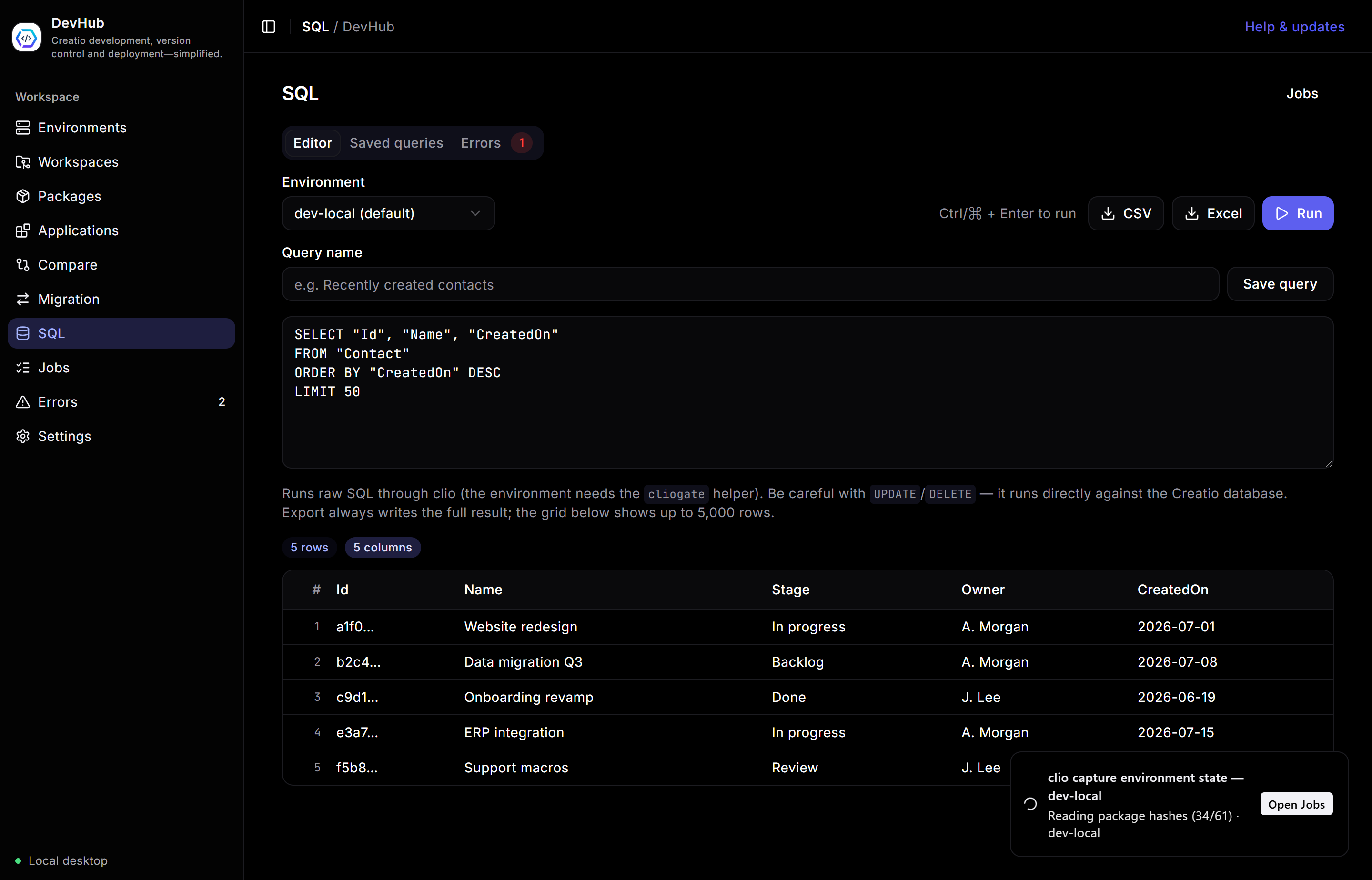
Run raw SQL against a Creatio database and export the result — with the guardrails you’d want.
Choose an Environment (it needs cliogate), write your query, and press Run — or Ctrl/⌘ + Enter. Results show as a grid with row and column counts. Export the full result to CSV or Excel (the on-screen grid caps at 5,000 rows; export does not). Name and Save query to reuse it from the Saved queries tab; failures collect in the Errors tab.
This runs directly against the database. UPDATE / DELETE are not sandboxed — there is no undo. Read twice before you run a write.
Logs
Creatio's own log, streaming live, without leaving DevHub.
Choose an environment, a level and a logger pattern, then press Start streaming. Lines arrive as they happen, colour-coded by level. Filter while you read, pause without losing your place — resuming tells you how many lines went by — clear, or save what is on screen to a file. The stream keeps running while you work elsewhere in DevHub, and coming back to the screen picks it up again.
Creatio allows one log listener per instance. Starting a stream stops anyone else watching that environment, and the server stops broadcasting after three hours. DevHub releases the listener when you press Stop or quit the app — closing the window only hides it to the tray, and the stream carries on. Streaming needs cliogate, and an environment registered with a user name and password (Creatio's log socket authenticates by session cookie).
Jobs
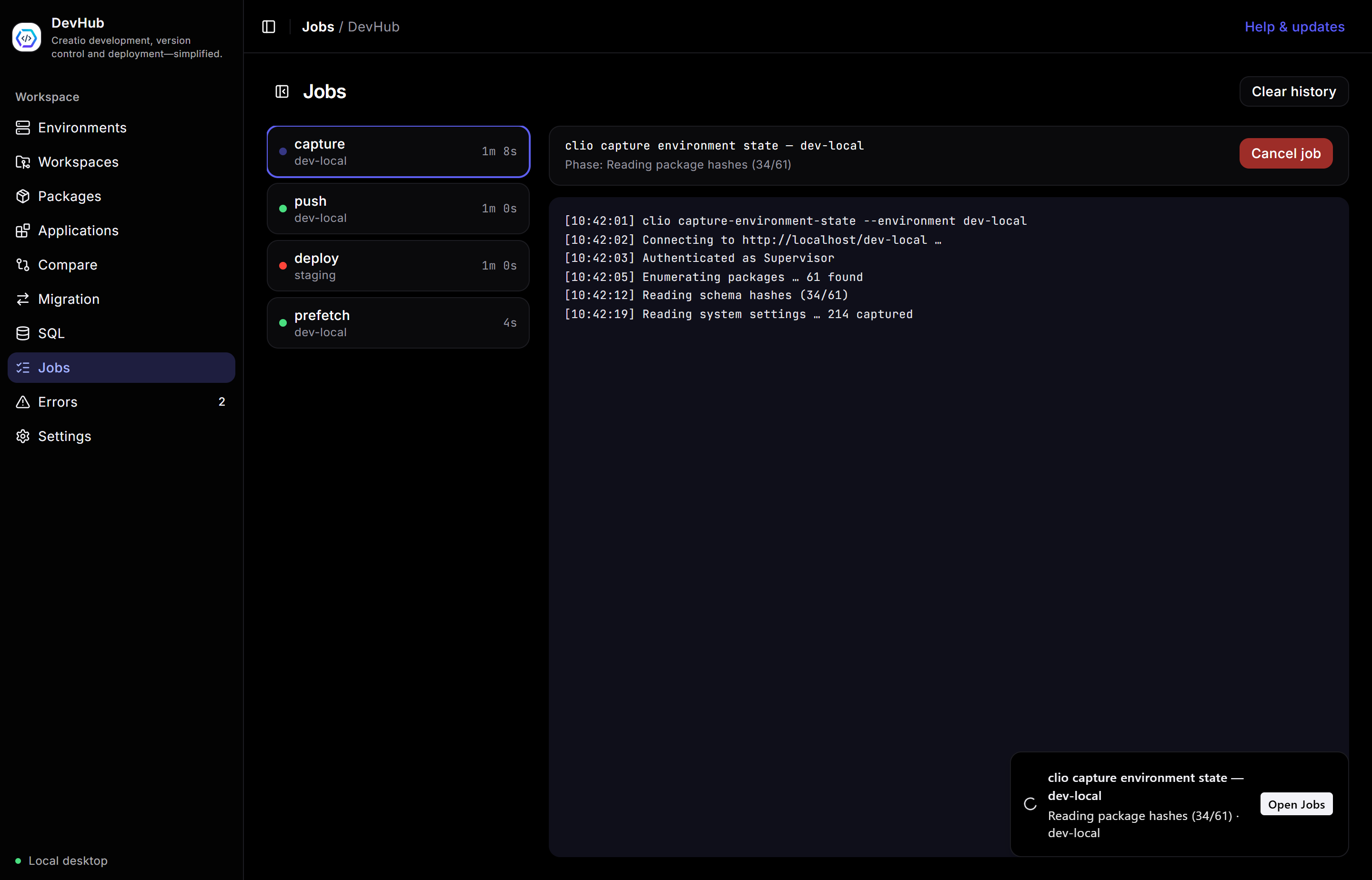
Everything DevHub runs in the background — captures, deploys, pushes — with live logs and safe cancellation.
Long-running work becomes a job so the UI never freezes. The list shows each job’s kind, environment, and duration. Select one to watch its phase and stream its log line by line. A running job can be cancelled safely — DevHub stops the underlying process and its children, leaving no orphans. Clear history tidies finished jobs; the running one stays.
Errors
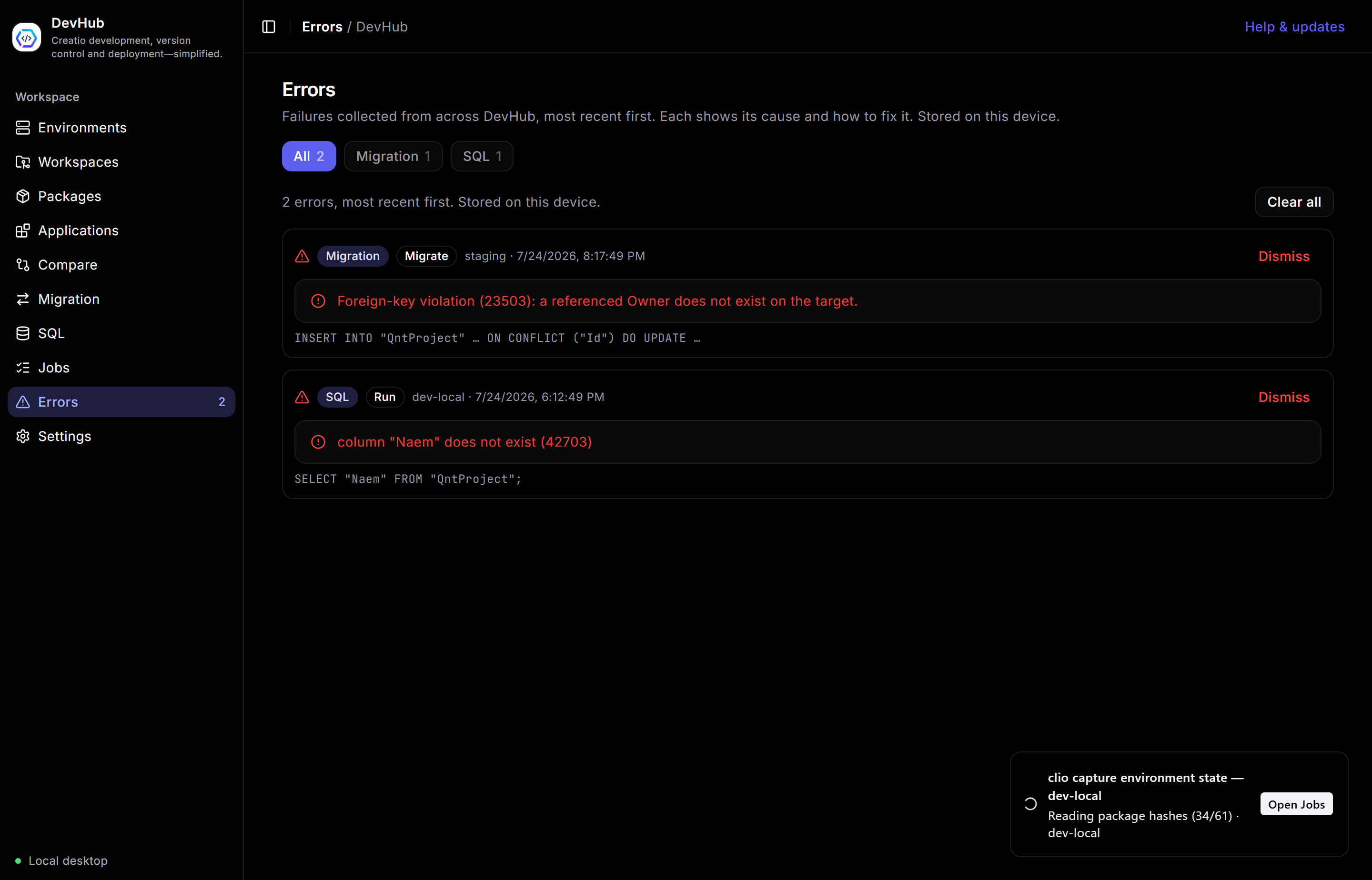
Every failure across DevHub, collected in one place — each with its cause and how to fix it.
When a run or action fails, it lands here (most recent first) instead of vanishing in a toast. Filter by the screen
that produced it — Migration, SQL, and so on. Each entry shows the environment, a
timestamp, the underlying message (often with its SQLSTATE, e.g. 23503 for a foreign-key violation), and the
offending input. Dismiss one or Clear all. Entries are stored on your device.
Settings
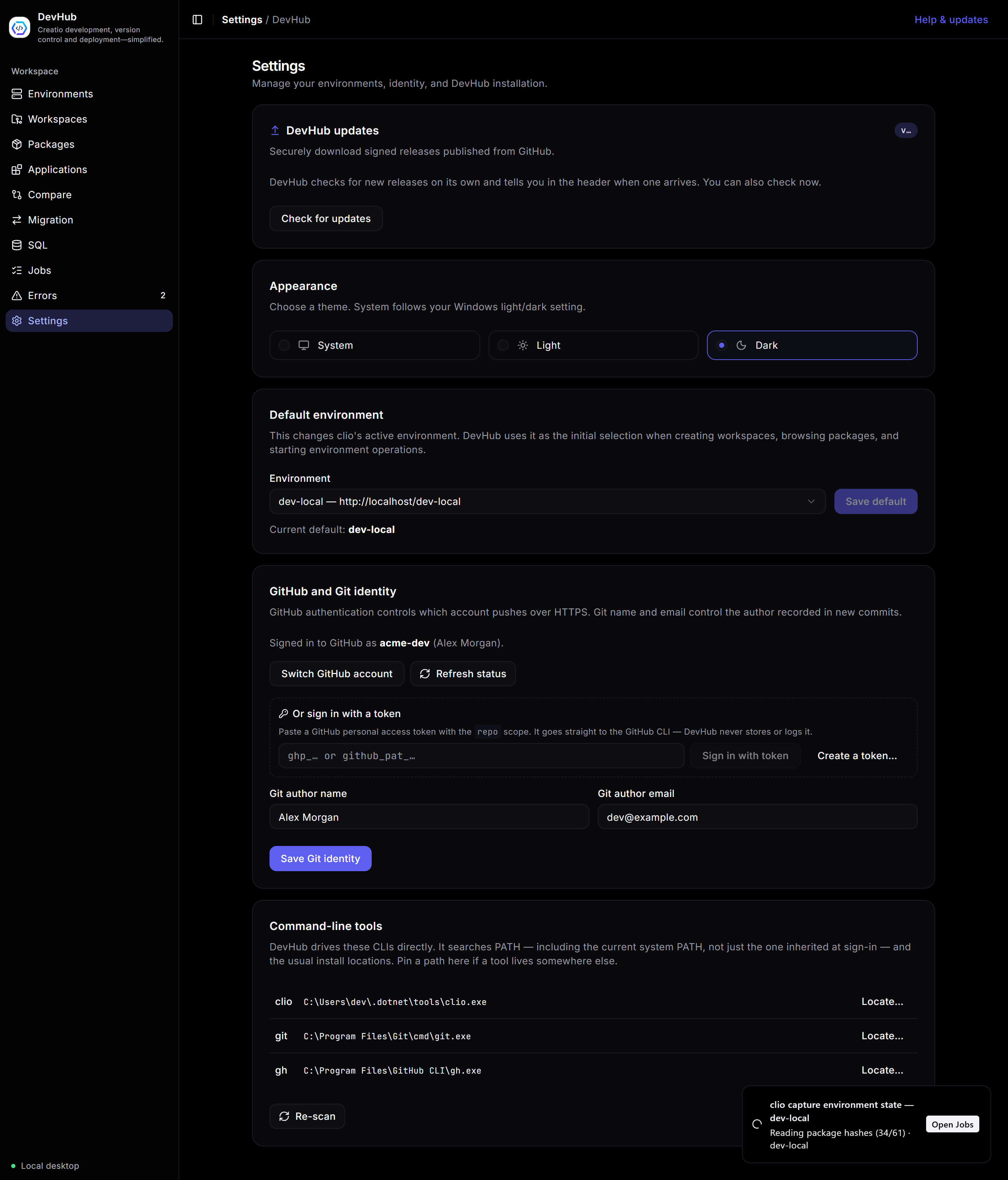
Your environments, identity, appearance, and the CLI tools DevHub drives.
- DevHub updates — DevHub checks for signed releases automatically; Check for updates forces it now.
- Appearance — System, Light, or Dark. System follows your OS setting.
- Default environment — the instance DevHub pre-selects across every screen.
- GitHub & Git identity — which account pushes over HTTPS (browser or a personal access token), plus the author name/email recorded in new commits. Tokens go straight to the GitHub CLI — DevHub never stores or logs them.
- Command-line tools — where DevHub resolved
clio,git, andgh. Locate… pins a custom path; Re-scan searches again.
Safety & updates
The habits DevHub builds in so a bad click doesn’t become a bad day.
- Signed auto-updates. DevHub only installs releases signed with the project key. A new version shows as a header banner; you choose when to install.
- Backups before writes. Deployments and migrations record a rollback/backup first (its path is logged in the job) unless you explicitly skip it.
- Typed confirmation. Destructive or cross-environment actions make you type the target’s name — so the intended instance is never a guess.
- No stored credentials. DevHub keeps no passwords;
clioowns them, and DevHub never surfaces raw credential values. - Nothing is proxied. It is a local desktop app — it talks to your environments and GitHub directly.
Found a gap in this guide, or something behaving differently? Open an issue — every report shapes what gets fixed next.